Weatherflow Tempest Weather Station (New Plugin)

User avatar
GlennNZ
Posts: 1872
Joined: Sun Dec 07, 2014 3:33 pm
Location: Central Coast, Australia

Weatherflow Tempest Weather Station (New Plugin)

Post by GlennNZ »

Image

WeatherFlow Tempest Weather Station — Indigo Plugin

Receives live weather data from WeatherFlow Tempest stations via local UDP broadcast and maps all sensor observations to Indigo device states. No cloud account or API key is required. Everything runs on your local network.

Wiki: https://github.com/Ghawken/WeatherFlowTempest/wiki
GitHub: https://github.com/Ghawken/WeatherFlowTempest

Image

Screenshot

Image

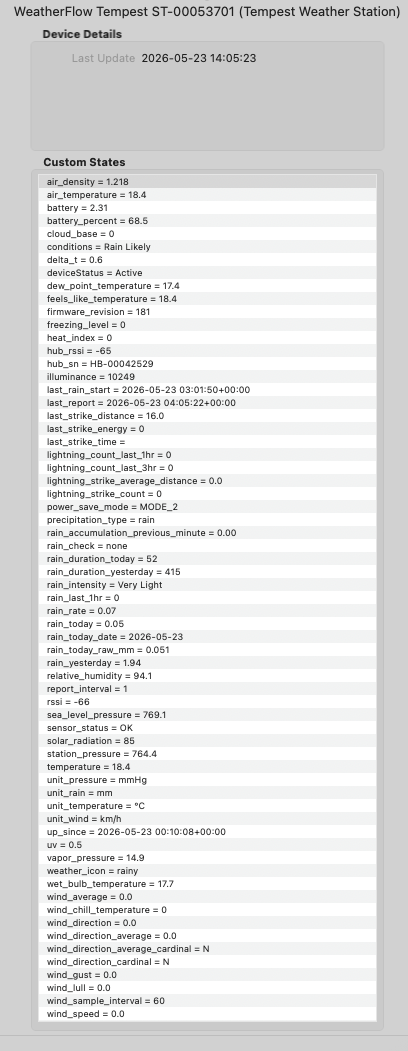
Indigo device states for a Tempest Weather Station showing live sensor readings and unit labels.

Image

Features
  • Temperature: Ambient, feels-like, dew point, wet bulb, wind chill, heat index, delta-T
  • Atmospheric: Station pressure, sea-level pressure, relative humidity, vapour pressure, air density
  • Wind: Instantaneous speed/direction (rapid-wind, ~3 s), 1-minute average, gust, lull, cardinal, sample interval
  • Rain: Per-minute accumulation, rain rate, intensity label, daily total, yesterday's total, Rain Check status
  • Lightning: Strike count, average distance, last-strike distance, energy and timestamp
  • Light: Illuminance (lux), solar radiation (W/m²), UV index
  • Battery: Voltage and percentage; power-save mode label; report interval
  • Derived: Cloud base, freezing level (both require altitude to be set)
  • Diagnostics: RSSI, firmware version, sensor fault flags, silence detection
  • Hub: Firmware, Wi-Fi RSSI, uptime, reset reasons
Image

Requirements
  • Indigo: 2025.2 or later (ServerApiVersion 3.4)
  • WeatherFlow hub: Any — must be on the same subnet as the Indigo Mac
Image

Quick Start
  1. Install the plugin (double-click WeatherFlowTempest.indigoPlugin).
  2. Go to Plugins → WeatherFlow Tempest → Configure → Generate Devices.
  3. Done — states populate within 60 seconds of the first UDP broadcast.
See Installation wiki page for full details.

Image

Installation
  1. Download WeatherFlowTempest.indigoPlugin and double-click it to install.
  2. Indigo will prompt to enable the plugin — click Enable.
  3. The plugin begins listening on UDP port 50222 immediately. No further configuration is required to start receiving data.
Device Setup

Auto-create all devices at once (recommended)
  1. Open Plugins → WeatherFlow Tempest Weather Station → Configure.
  2. Click Generate Devices.
  3. The plugin creates one Indigo device for every Tempest and Hub currently broadcasting on the network.
  4. Re-click the button whenever new hardware is added.
Manual device creation
  1. Go to Devices → New Device → Type: WeatherFlow Tempest Weather Station.
  2. Choose Tempest Weather Station or WeatherFlow Hub.
  3. Select your unit from the dropdown — devices are listed as soon as the hub broadcasts.
  4. Click Save.
Tip: If the device dropdown is empty, the hub has not yet sent a broadcast. Wait 30–60 seconds and use the Reload button in the dialog to refresh the list.
Image

Tempest Device Configuration
  • Tempest Device: Serial number of the Tempest (ST-xxxxxxxx), discovered automatically
  • Altitude (m): Station elevation in metres above sea level. Used to calculate sea-level pressure, cloud base, and freezing level. Set to 0 to omit those derived states.
  • Units — Temperature: °C or °F
  • Units — Pressure: hPa (mbar), mmHg, or inHg
  • Units — Wind Speed: m/s, km/h, mph, or knots
  • Units — Rain: mm or inches
Unit selections are independent — mix and match as needed. Changes take effect on the next sensor observation (within ~1 minute). Active unit labels are stored in the unit_temperature, unit_pressure, unit_wind, and unit_rain device states.

Image

Device States

Tempest Weather Station

Temperature
  • air_temperature — Ambient temperature
  • feels_like_temperature — Apparent / feels-like temperature
  • dew_point_temperature — Dew point
  • wet_bulb_temperature — Wet bulb temperature
  • wind_chill_temperature — Wind chill
  • heat_index — Heat index
  • delta_t — Delta-T (dry bulb minus wet bulb)
Atmospheric
  • relative_humidity — Relative humidity (%)
  • station_pressure — Raw station pressure
  • sea_level_pressure — Sea-level corrected pressure (requires altitude > 0)
  • vapor_pressure — Vapour pressure
  • air_density — Air density (kg/m³, always metric)
Derived (require altitude > 0)
  • cloud_base — Estimated cloud base height above station
  • freezing_level — Estimated freezing level height above station
Light & UV
  • illuminance — Illuminance (lux)
  • solar_radiation — Solar irradiance (W/m²)
  • uv — UV index
Rain
  • rain_accumulation_previous_minute — Rain accumulated in the previous minute
  • rain_rate — Current rain rate (mm/h or in/h)
  • rain_today — Total rain since local midnight
  • rain_yesterday — Yesterday's total rain
  • rain_intensity — None / Very Light / Light / Moderate / Heavy / Violent
  • rain_check — WeatherFlow Rain Check verification status (none / on / off)
  • precipitation_type — none, rain, hail, or rain_hail
  • last_rain_start — Timestamp of the most recent rain-start event (UTC)
Lightning
  • lightning_strike_count — Strikes detected in the last 3 minutes
  • lightning_strike_average_distance — Average distance of recent strikes
  • last_strike_distance — Distance of the most recent strike
  • last_strike_energy — Energy of the most recent strike
  • last_strike_time — Timestamp of the most recent strike (UTC)
Wind
  • wind_speed — Instantaneous wind speed (rapid-wind, ~3 s interval)
  • wind_average — 1-minute average wind speed
  • wind_gust — 1-minute wind gust
  • wind_lull — 1-minute wind lull
  • wind_direction — Instantaneous wind direction (°)
  • wind_direction_average — 1-minute average wind direction (°)
  • wind_direction_cardinal — Instantaneous cardinal direction (N, NE, …)
  • wind_direction_average_cardinal — Average cardinal direction
  • wind_sample_interval — Wind measurement window (seconds)
Unit Labels
  • unit_temperature — Active temperature unit (e.g. °C)
  • unit_pressure — Active pressure unit (e.g. hPa)
  • unit_wind — Active wind speed unit (e.g. km/h)
  • unit_rain — Active rain unit (e.g. mm)
Battery & Power
  • battery — Battery voltage (V)
  • battery_percent — Battery level (%)
  • power_save_mode — Active power-save mode name
  • report_interval — Observation reporting frequency (minutes)
Diagnostics
  • rssi — Tempest RF signal strength (dBm)
  • hub_rssi — Hub RF signal strength (dBm)
  • firmware_revision — Tempest firmware version
  • hub_sn — Hub serial number
  • up_since — Device power-on timestamp (UTC)
  • last_report — Timestamp of the most recent observation (UTC)
  • sensor_status — Sensor fault flags, or OK
  • deviceStatus — Active / Waiting for data / No data — last seen N min ago
WeatherFlow Hub
  • firmware_revision — Hub firmware version
  • rssi — Hub Wi-Fi signal strength (dBm)
  • up_since — Hub power-on timestamp (UTC)
  • uptime — Seconds since last boot
  • reset_flags — Reason(s) for the last reset (comma-separated)
  • deviceStatus — Connection status
Image

Triggers

Three custom trigger types are available under Triggers → New Trigger → WeatherFlow Tempest Weather Station.

Each trigger includes a Tempest Device picker so it can be scoped to a specific station when you have more than one.

Lightning Strike Detected

Fires whenever the selected Tempest detects a lightning strike. The last_strike_distance, last_strike_energy, and last_strike_time device states are updated before the trigger fires.

Use cases:
  • Send a push notification with distance and energy.
  • Flash a light or sound an alert.
  • Log strikes to a variable for counting.
Rain Started

Fires when the Tempest detects the onset of precipitation (the first rain-start event after a dry period). The last_rain_start state is updated when this trigger fires.
Note: This trigger fires from the Tempest's dedicated rain-start event, which is sent immediately when the sensor detects rain — independent of the 1-minute observation cycle. It fires once per rain onset, not repeatedly while rain continues.
Use cases:
  • Close roof vents or skylights.
  • Retract a pergola awning.
  • Send a "rain started" notification.
Rapid Wind Exceeds Threshold

Fires when an instantaneous wind reading meets or exceeds a configurable speed. Rapid-wind readings arrive approximately every 3 seconds, giving near-real-time wind monitoring.

Configuration:
  • Tempest Device: The Tempest station to watch.
  • Threshold (m/s): Minimum wind speed (in m/s) required to fire the trigger.
The threshold is always compared against the raw m/s magnitude regardless of the display unit set in the device configuration. Convert your target speed if needed: 1 m/s = 3.6 km/h = 2.237 mph = 1.944 kn.
Use cases:
  • Close greenhouse vents above 10 m/s.
  • Retract a sail shade above 15 m/s.
  • Log wind gusts to a time-stamped variable.
Trigger Limitations
  • In power-save MODE_2 and above, rapid-wind events are not sent by the Tempest. The Rapid Wind Exceeds Threshold trigger will not fire in those modes. The wind_speed state still updates from the 1-minute observation, but at a lower frequency.
  • Lightning and rain-start triggers fire from discrete UDP events and are not affected by power-save mode.
Image

Station Silence Detection

The plugin monitors each Tempest station for data dropouts. If no observation is received for more than 5 minutes:
  • The deviceStatus state is updated to "No data — last seen N min ago", making the outage visible in the Indigo device list without checking logs.
  • A warning is written to the Indigo Event Log.
  • The warning repeats every 30 minutes for as long as the silence continues, with an updated elapsed time.
When data resumes, deviceStatus returns to "Active" automatically on the next observation, and a recovery notice is logged.

The plugin also monitors the UDP listener itself. If the background socket task crashes for any reason, the listener is restarted automatically within 60 seconds.

Image

Plugin Preferences

Open Plugins → WeatherFlow Tempest Weather Station → Configure.
  • Generate Devices: Auto-create Indigo devices for all discovered WeatherFlow hardware
  • UDP Port: Port the hub broadcasts on (default: 50222)
  • Listen Address: Network interface to listen on (default: 0.0.0.0 = all interfaces)
  • Indigo Log Level: Verbosity of messages in the Indigo Event Log
  • File Log Level: Verbosity of messages written to the plugin log file
Saving the preferences automatically restarts the UDP listener.

Plugin Menu

Plugins → WeatherFlow Tempest Weather Station exposes two menu commands:
  • List Discovered WeatherFlow Devices — logs all currently-discovered serial numbers, models, and firmware versions to the Event Log.
  • Restart UDP Listener — stops and restarts the listener without reloading the plugin (useful after network changes).
Image

Troubleshooting

Device dropdown is empty / "No devices discovered yet"
  • Confirm the WeatherFlow hub is on the same subnet as the Indigo Mac. UDP broadcast does not cross router boundaries.
  • Check that nothing is blocking UDP port 50222 (macOS firewall, managed switch, VLAN separation).
  • Wait 60 seconds — hubs broadcast a status packet roughly once per minute — then use the Reload button in the device dialog.
deviceStatus shows "No data — last seen N min ago"
  • The station has not sent an observation in over 5 minutes. Check the hub's power and Wi-Fi connection, and confirm the Tempest is within RF range.
  • Check the Indigo Event Log for listener errors. Use Plugins → WeatherFlow → Restart UDP Listener to retry without reloading the plugin.
sea_level_pressure, cloud_base, freezing_level are missing
  • Set Altitude (m) to a non-zero value in the Tempest device configuration.
sensor_status shows all sensors failed
  • This is a known reporting quirk in some Tempest firmware versions where the raw hardware register value is broadcast before the sensor self-test completes. The plugin detects this pattern and displays OK instead. If only a subset of sensors are listed as failed, that is a genuine fault.
Debug logging
  • Set Indigo Log Level to Debugging Messages in Plugin Preferences for verbose output in the Event Log.
  • The plugin log file is written to ~/Library/Application Support/Perceptive Automation/Indigo 2025.x/Logs/. Set File Log Level to Detailed Debugging Messages for maximum detail.
Image

Libraries & Acknowledgements

pyweatherflowudp — v1.5.2
by Nathan Spencer (@natekspencer)

The core UDP library that handles all communication with the WeatherFlow hub. It provides an event-based asynchronous interface, parses every WeatherFlow message type (observations, rapid wind, lightning strikes, rain events, device status), and exposes sensor values as typed properties with full unit support.

All derived meteorological calculations in the plugin — dew point, wet bulb temperature, heat index, feels-like temperature, vapour pressure, air density, sea-level pressure, cloud base, and freezing level — are provided by this library.

Licensed under MIT. If you find it useful, consider supporting Nathan on Ko-fi.

Pint — v0.25.3

Physical quantity handling with units. All sensor values carry their native unit (e.g. metres per second, millibars) and are converted to the user's chosen display unit using Pint's unit registry, ensuring numerically correct conversions.

PsychroLib — v2.5.0

Psychrometric calculations used by pyweatherflowudp to derive wet bulb temperature and related humidity metrics from the raw sensor readings.

Image

License

MIT — see LICENSE for details.

Developed by GlennNZ.
User avatar
durosity
Posts: 4810
Joined: Thu May 10, 2012 3:21 pm
Location: Newcastle Upon Tyne, Ye Ol' England.

Re: Weatherflow Tempest Weather Station (New Plugin)

Post by durosity »

Oooh exciting! This may be a better option than the other plugin you posted.

Just fyi the link you posted in your opening paragraph “ Receives live weather data from WeatherFlow Tempest stations” is a 404!
Computer says no.
User avatar
Korey
Posts: 888
Joined: Wed Jun 04, 2008 11:47 am
Location: Henderson, NV
Contact:

Re: Weatherflow Tempest Weather Station (New Plugin)

Post by Korey »

Thanks Glenn!!

I have the old sky / air system and the newer tempest all in one. (was beta testing for the tempest system before it came out)

Looking forward to this!

Thanks!
--
Korey
Dual
Posts: 298
Joined: Tue Feb 05, 2019 6:01 pm

Re: Weatherflow Tempest Weather Station (New Plugin)

Post by Dual »

I will take a look as well. I have a new still in the box unit to replace one that died a few months ago. I was using Dave’s GhostXML app. I will give this a try.


Sent from my iPhone using Tapatalk
User avatar
GlennNZ
Posts: 1872
Joined: Sun Dec 07, 2014 3:33 pm
Location: Central Coast, Australia

Re: Weatherflow Tempest Weather Station (New Plugin)

Post by GlennNZ »

durosity wrote: Fri May 22, 2026 11:52 pm Oooh exciting! This may be a better option than the other plugin you posted.
Just fyi the link you posted in your opening paragraph “ Receives live weather data from WeatherFlow Tempest stations” is a 404!
Odd - works for me?
Korey wrote: Sat May 23, 2026 11:20 am Thanks Glenn!!
I have the old sky / air system and the newer tempest all in one. (was beta testing for the tempest system before it came out)
Looking forward to this!
Thanks!
Does support Air and Sky systems - although those are untested by me.
User avatar
durosity
Posts: 4810
Joined: Thu May 10, 2012 3:21 pm
Location: Newcastle Upon Tyne, Ye Ol' England.

Re: Weatherflow Tempest Weather Station (New Plugin)

Post by durosity »

GlennNZ wrote: Sat May 23, 2026 3:06 pm
durosity wrote: Fri May 22, 2026 11:52 pm Oooh exciting! This may be a better option than the other plugin you posted.
Just fyi the link you posted in your opening paragraph “ Receives live weather data from WeatherFlow Tempest stations” is a 404!
Odd - works for me?
It's working fine for me now too. Must've been a blip at the time.
Computer says no.
User avatar
GlennNZ
Posts: 1872
Joined: Sun Dec 07, 2014 3:33 pm
Location: Central Coast, Australia

Re: Weatherflow Tempest Weather Station (New Plugin)

Post by GlennNZ »

Image

WeatherFlow Tempest — Plugin Updates v2.0 & v2.5

Big couple of updates to the WeatherFlow Tempest plugin! Two new releases have landed — v2.0.2 brings Web API integration with a stack of new states, and v2.5.0 adds something I'm particularly excited about: the ability to monitor any public WeatherFlow station on the internet as an Indigo device. Both updates are live on GitHub now.

Wiki: https://github.com/Ghawken/WeatherFlowTempest/wiki
GitHub: https://github.com/Ghawken/WeatherFlowTempest
Changelog: https://github.com/Ghawken/WeatherFlowTempest/wiki/Changelog

Image

v2.0.2 — WeatherFlow Web API Integration

The plugin now optionally connects to the WeatherFlow REST API (in addition to the existing local UDP listener) to unlock states that simply aren't available over the local broadcast. All you need is a free Personal Use Token from your WeatherFlow account — grab one at tempestwx.com → Settings → Data Authorizations.

Nine new device states:
  • rain_today — Authoritative daily rain total, rain-check corrected by WeatherFlow's servers (more accurate than the raw UDP value)
  • rain_yesterday — Yesterday's corrected total
  • rain_last_1hr — Rolling 60-minute rainfall
  • rain_duration_today — Minutes of measurable rain today
  • rain_duration_yesterday — Minutes of measurable rain yesterday
  • conditions — Current weather description (e.g. "Partly Cloudy")
  • weather_icon — Icon name from WeatherFlow's forecast engine
  • lightning_count_last_1hr — Strikes in the last 60 minutes
  • lightning_count_last_3hr — Strikes in the last 3 hours
Web-only mode — if your Tempest hub is on a different network, VLAN, or subnet from the Indigo Mac, tick Web-only (hub on different network) in the device configuration and enter your Station ID. The plugin will poll the cloud API every 60 seconds and populate all states without needing any local UDP. Great for monitoring a hub at a remote property.

Automatic UDP fallback — if a UDP station goes quiet for more than 5 minutes, the web API kicks in and keeps all states current until UDP resumes.
Enable in Plugin Preferences → Enable Web API. Enter your token, save, and done. Existing UDP-only setups need no changes at all.
Image

v2.5.0 — Public Tempest Station

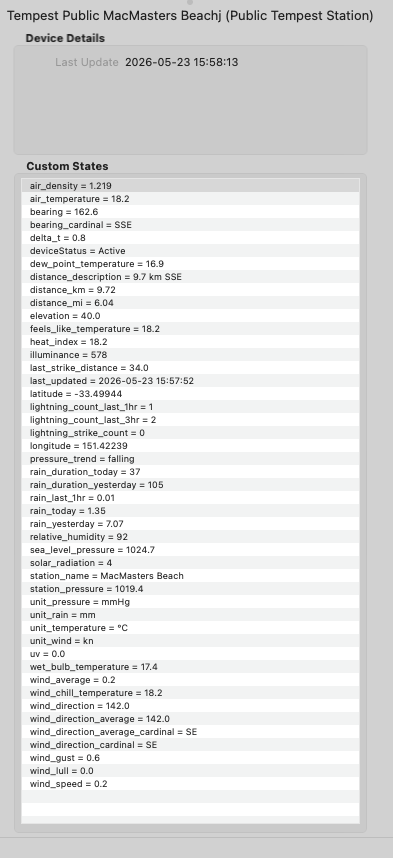
This is the fun one. There are thousands of public WeatherFlow stations worldwide — homeowners who've shared their station data on tempestwx.com. v2.5.0 lets you add any of them as an Indigo device, with the same full weather dataset as your own local Tempest.

No account, no token, no login required. If the station is public on tempestwx.com, you can monitor it.

Image

How to find public stations:
  1. Open tempestwx.com — the map loads showing dots for publicly-shared stations in your area. Zoom in to see what's near you.
  2. Click any station marker on the map. A popup appears showing the station name, current conditions, and a link to open the full station page.
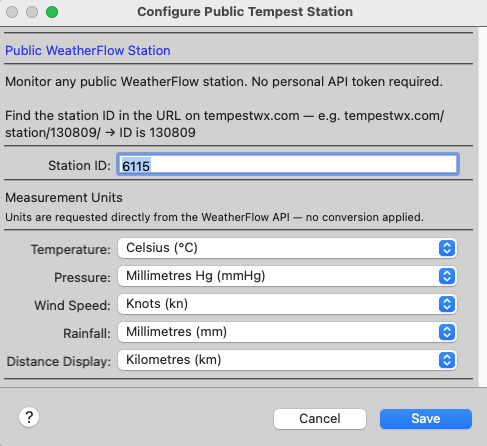
  3. Click through to the station page. Look at the URL in your browser — it will be something like tempestwx.com/station/130809/. That number — 130809 — is the Station ID.
  4. In Indigo, go to Devices → New Device → WeatherFlow Tempest Weather Station, choose Public Tempest Station, enter that number, choose your units, and save.
The device starts polling immediately. States fill within 2 minutes. Data is refreshed every 120 seconds.

Distance and direction states

Every Public Tempest Station device knows where it is relative to your Indigo server — the plugin calculates distance and bearing automatically (it uses the latitude/longitude you've set in Indigo → Preferences → Location).

Image
  • distance_km / distance_mi — exact distance from your Indigo Mac to the station
  • bearing — direction in degrees (0° = North, 90° = East, 180° = South, 270° = West)
  • bearing_cardinal — 16-point compass abbreviation: N, NNE, NE, ENE, E, ESE, SE, SSE, S, SSW, SW, WSW, W, WNW, NW, NNW
  • distance_description — human-readable combined label, e.g. 14.3 km NNE or 600 m WSW
The direction is measured from your Indigo server toward the station — so a bearing_cardinal of NNE means the station is to your north-north-east. The distance_description state auto-scales: metres below 1 km (or feet below 0.1 miles), km/miles beyond that. You can drop it straight into a Control Page label or notification without any scripting.

Build a weather network

You can add as many Public Tempest Station devices as you like — each is a standalone Indigo device on its own 120-second polling cycle. Some ideas:
  • Add a station upwind of you to spot incoming rain or wind shifts before they arrive at your place
  • Compare a coastal station vs an inland one for temperature or UV differences
  • Watch lightning counts across stations at different distances to track which way a storm is moving
  • Show a ring of nearby stations on a Control Page, each one labelled by its distance_description
Tip: Give each device a descriptive name in Indigo — e.g. WF — Ridgeline or WF — Harbourside — and let the distance_description and bearing_cardinal states do the heavy lifting in automations and Control Pages.
Full weather dataset on every public station:
  • All temperature variants: ambient, feels-like, dew point, wet bulb, wind chill, heat index, delta-T
  • Atmospheric: humidity, station pressure, sea-level pressure, pressure trend, air density
  • Wind: average, gust, lull, direction degrees and 16-point cardinal
  • Rain: today, yesterday, last 1 hour, rain duration today and yesterday — all rain-check corrected
  • Lightning: total count, last 1-hour and 3-hour counts, last strike distance
  • Light: UV index, solar radiation, illuminance
  • Station identity: name, latitude, longitude, elevation

Full Documentation

The wiki has been fully updated with pages for both releases:
As always — happy to help if anything doesn't work as expected. Enjoy the new toys!

Image
User avatar
GlennNZ
Posts: 1872
Joined: Sun Dec 07, 2014 3:33 pm
Location: Central Coast, Australia

Re: Weatherflow Tempest Weather Station (New Plugin)

Post by GlennNZ »

Image

WeatherFlow Tempest — Plugin Update v2.5.1

A bug-fix release is out. Three fixes in this one — stale web data, Air device state errors, and duplicate polling on startup. Details below.

Wiki: https://github.com/Ghawken/WeatherFlowTempest/wiki
GitHub: https://github.com/Ghawken/WeatherFlowTempest
Release notes: https://github.com/Ghawken/WeatherFlowTempest/wiki/Release-2.5.1

Image

Fix 1 — Web backup no longer writes stale data

Problem: When a Tempest's UDP connection dropped, the web backup poller would take over and keep writing all sensor states every 60 seconds. If the station itself was also offline, WeatherFlow's cloud API returns the last cached observation indefinitely — so the plugin would keep overwriting temperature, wind, pressure and rain states with hour-old (or older) values. The same applied to Public Tempest Station devices.

Fix: Both pollers now check the age of the observation timestamp before writing any states. If the data is more than 10 minutes old, the update is skipped and a warning is logged:

Code: Select all

My Tempest: web observation is 47.2 min old — skipping update
My Public Station: public observation is 23.8 min old — skipping update
On every successful poll, the age is also written at Debug level so you can monitor freshness:

Code: Select all

My Tempest: web observation age 3 s (0.1 min)
My Public Station: public observation age 47 s (0.8 min)
Image

Fix 2 — Air (AR-) device state errors

Problem: Users with older WeatherFlow Air sensors were seeing a flood of Indigo errors on every observation:

Code: Select all

Error device "WeatherFlow Air AR-XXXXXXXX" state key rain_intensity not defined
Error device "WeatherFlow Air AR-XXXXXXXX" state key rain_today not defined
Error device "WeatherFlow Air AR-XXXXXXXX" state key rain_today_raw_mm not defined
Error device "WeatherFlow Air AR-XXXXXXXX" state key rain_today_date not defined
The Air has no rain sensor, so its device type doesn't define rain states. But the observation handler was writing rain states unconditionally for all device types, including Air. A secondary bug caused the daily rain accumulator to produce a spurious 0.0 mm value for Air (both rain properties return None, which summed to 0.0 and slipped through a not None check), triggering the rain_today and rain_today_raw_mm write attempts.

Fix: All rain-related states are now gated behind a SkySensorType check — only Sky (SK-) and Tempest (ST-) devices, which actually have rain hardware, will have rain states written. Air devices are fully unaffected. Sky and Tempest behaviour is unchanged.

Image

Fix 3 — Duplicate polling on startup

Problem: The public station poller (and potentially the web API poller) could start two concurrent polling tasks at plugin startup, causing every API call and every log line to appear twice:

Fix: A second guard check was added inside the scheduled callback itself. Since the event loop executes callbacks serially, by the time the second callback runs the first has already assigned the task — so the duplicate is suppressed. Applied to both pollers.

Image

No configuration changes needed

All fixes are automatic. If you have Air (AR-) or Sky (SK-) devices, a plugin reload after updating will clear any accumulated state errors from prior versions.

Full release notes: Release 2.5.1

Image
jltnol
Posts: 1162
Joined: Tue Oct 15, 2013 11:11 pm

Re: Weatherflow Tempest Weather Station (New Plugin)

Post by jltnol »

AMAZING!

I've got a few scripts running on the older WeatherFlow plugin, so will have to go in and update... but this is amazing.

THANKS!
jltnol
Posts: 1162
Joined: Tue Oct 15, 2013 11:11 pm

Re: Weatherflow Tempest Weather Station (New Plugin)

Post by jltnol »

Quick Question.


I see there is a "weather icon" field. Would be nice to have that auto populated as an icon in an Indigo webpage. Guessing this is possible, but can't quite connect the dots. Guessing I need to find and download the icons... seems easy enough... but is there a "built-in" way to accomplish this? Or maybe some kind of "refreshing image" scripting? Either way, looks like something fun to work on.
User avatar
GlennNZ
Posts: 1872
Joined: Sun Dec 07, 2014 3:33 pm
Location: Central Coast, Australia

Re: Weatherflow Tempest Weather Station (New Plugin)

Post by GlennNZ »

The way to use these fields is to make a conditional image with the use of the + after the label.
https://wiki.indigodomo.com/doku.php?id ... tom_images

I have some images here I use in KioskHome Indigo control pages - BOM_animated+ for example being weather with the icon type label needing to match completely to be used.
The exact wording after the + will depend on what Tempest uses for icons (*found and below)

Images here:

https://github.com/Ghawken/Kiosk-Home-I ... ls/devices

Tempest icon options:
Possible Icon Values:

Code: Select all

clear-day
clear-night
cloudy
foggy
partly-cloudy-day
partly-cloudy-night
possibly-rainy-day
possibly-rainy-night
possibly-sleet-day
possibly-sleet-night
possibly-snow-day
possibly-snow-night
possibly-thunderstorm-day
possibly-thunderstorm-night
rainy
sleet
snow
thunderstorm
windy
(from here: https://weatherflow.github.io/Tempest/a ... erForecast)

So create your own images matching these conditions, like to device state icon - and control page will update.

See here:

Setting Up Weather Icons for Tempest on a Control Page

This guide walks you through displaying weather condition icons on your Indigo Control Page based on the Tempest Weather plugin's Icon state. Indigo uses a filename convention to swap the image automatically — there's no button or rules to set up, just correctly named files.

How It Works

When you display a device state as an image on a Control Page, Indigo looks for image files named like this:

Code: Select all

basename+statevalue.png
The bit before the + is your chosen base name. The bit after the + must exactly match the state value Indigo is reporting. Indigo then automatically picks the right variant when the state changes.

So for the Tempest Icon state, you'll end up with a set of files like:

Code: Select all

weather+clear-day.png
weather+clear-night.png
weather+cloudy.png
weather+foggy.png
...etc
Step 1 — Get Some Icons

A nice set of animated BOM-style weather icons is here:

https://github.com/Ghawken/Kiosk-Home-Images/tree/main/Web%20Assets/images/controls/devices

Download whichever ones you'd like to use. You can mix and match from any source — the only thing that matters is that you rename them to match the convention above.

Tip: Check the icon size before committing to a set — make sure they look right at the size your Control Page uses. If they're too big or small, resize them or try a different set.

Step 2 — Rename the Files

Pick a base name (e.g. weather) and rename each icon so the part after the + exactly matches one of the Tempest Icon state values.

The Tempest Icon state has these 19 possible values — you'll need one image file for each:

Code: Select all

weather+clear-day.png
weather+clear-night.png
weather+cloudy.png
weather+foggy.png
weather+partly-cloudy-day.png
weather+partly-cloudy-night.png
weather+possibly-rainy-day.png
weather+possibly-rainy-night.png
weather+possibly-sleet-day.png
weather+possibly-sleet-night.png
weather+possibly-snow-day.png
weather+possibly-snow-night.png
weather+possibly-thunderstorm-day.png
weather+possibly-thunderstorm-night.png
weather+rainy.png
weather+sleet.png
weather+snow.png
weather+thunderstorm.png
weather+windy.png
Important: These are case-sensitive and the hyphens matter. clear-day is not the same as Clear-Day or clear_day. Get it wrong and Indigo won't find a match.

If you grab icons from other sources, the same rules apply — rename them so the suffix matches one of the values above.

Step 3 — Drop the Files into Indigo's Images Folder

Copy all your renamed icons into:

Code: Select all

/Library/Application Support/Perceptive Automation/Indigo X/IndigoWebServer/images/controls/devices/
(Replace X with your Indigo version number.)

You should also put a plain weather.png (no +) in the same folder. That's the fallback image Indigo shows if the state value doesn't match any of your variants.

Step 4 — Add the Control to Your Page
  1. Open your Control Page in the editor.
  2. Drag a Display Device State control onto the page.
  3. Choose your Tempest Weather device.
  4. For the State, select Icon.
  5. Set the display type to Image.
  6. Choose your base image — pick weather.png from the devices folder.
  7. Save the Control Page.
That's it. Indigo will now automatically display the matching weather+xxx.png file based on whatever the Tempest Icon state currently is, and fall back to plain weather.png if it ever sees a value it doesn't have a match for.

Troubleshooting
  • Always seeing the fallback image: Filename typo, almost always. Check the Tempest device's current Icon value in Indigo (look at the device details) and compare it character-for-character against your filename suffix.
  • No image at all: The base image (e.g. weather.png) isn't in the devices folder, or it's named differently to what you selected in the control.
  • Day/night not switching: That's handled by the Tempest plugin itself — it appends -day or -night based on sun position, so you just need both variants present as separate files.
Good luck — once it's set up, it pretty much runs itself. :)


Plus a tidy up version 2.5.3 up now.

Glenn
jltnol
Posts: 1162
Joined: Tue Oct 15, 2013 11:11 pm

Re: Weatherflow Tempest Weather Station (New Plugin)

Post by jltnol »

Got it!

Thanks for all the work on this.
User avatar
Grognard
Posts: 84
Joined: Tue May 17, 2011 8:28 pm
Location: Seabrook, TX
Contact:

Re: Weatherflow Tempest Weather Station (New Plugin)

Post by Grognard »

Just want to add my thanks for another great plugin! I love the ability to use both UDP and the Web API data (essential for rainfall in my experience)!
jalves
Posts: 783
Joined: Sun Jun 16, 2013 11:35 am

Re: Weatherflow Tempest Weather Station (New Plugin)

Post by jalves »

Love the new plugin. I had to disable the other similar plugin and the new one worked just fine. Going to play around with some more triggers based on the current weather
Running Indigo 2024.2.1 on a 24" iMac M4), OS X 26.0
Jeff
User avatar
Grognard
Posts: 84
Joined: Tue May 17, 2011 8:28 pm
Location: Seabrook, TX
Contact:

Re: Weatherflow Tempest Weather Station (New Plugin)

Post by Grognard »

I'm continuing to enjoy this plugin, we just got some rain so I got to see the difference between UDP and web values for rainfall, as expected.

I think I may have found an "undocumented feature" though: Despite having my Weatherflow device presences set to °F, all menus which reference custom states (e.g., triggers/conditions) show as °C. It looks like this is in fact the case for any trigger/condition which has both metric and imperial values. The test appears to evaluate correctly (in the above example it was 88 °F out, but the Condition evaluated as true), so this appears to be a cosmetic bug.

I've gone ahead and created a Github issue (thanks for the quick turnaround on the last one).

- John
Attachments
Screenshot 2026-06-02 at 1.45.51 PM.png
Screenshot 2026-06-02 at 1.45.51 PM.png (106.91 KiB) Viewed 198 times
Post Reply

Return to “GlennNZ's Plugins”