

Check Latest Version:
Current Version: 0.8.05 | Requires: Indigo 2025.1+ (Python 3)
GitHub: https://github.com/Ghawken/HomeKitLink-Siri
Review Wiki:
Full Documentation / Wiki: https://github.com/Ghawken/HomeKitLink-Siri/wiki
&&
Plugin Menu Items

 Before Posting — Run These Three Items First
 These diagnostic tools solve the vast majority of issues. Please run all three and include the Indigo log output in any forum post. Without this output, diagnosing your issue is much harder.
Plugins → HomeKitLink Siri →
 Troubleshoot 1 — Support Information For Forum Posting
Generates a complete summary of your HKLS installation: plugin version, Python version, all configured bridges, published device list, mDNS/network configuration, active drivers, port assignments, and any known error conditions. Include this in every support post.
Troubleshoot 2 — Network Trouble ShootingComprehensive network diagnostic. Checks: Apple Local Network Access (macOS Sequoia 15.x+ requirement), mDNS multicast send and group join, outbound UDP, gateway reachability, firewall status (stealth mode, block-all), plugin network config, bridge port accessibility, and DNS resolution. Uses a definitive multicast send test that catches the exact LNA failure mode.
Troubleshoot 3 — Support mDNS TroubleshootingFocused mDNS/Bonjour diagnostic. Checks: interface binding, firewall as it relates to mDNS, Zeroconf/AsyncZeroconf state, Bonjour/mDNSResponder status, and mDNS advertisement records for all active bridges.
macOS Sequoia (15.x+) users: Run Troubleshoot 2 first — it will tell you definitively if Local Network Access is blocked. If it is: System Settings → Privacy & Security → Local Network → enable IndigoPluginHost3.
Other menu items:
- Show Device Publications — lists all published devices in the Indigo log with status (running / disabled / orphaned)
- Identify Devices Running / Not Running — shows which bridges are active
- Restart HomeKit — stops and restarts all bridges
- Unlink Orphaned Devices — cleans up devices whose bridge was deleted
- Delete Residual States Files — removes leftover HomeKit state files
- Rerun FFmpeg Call for Logging — replays last camera stream command, logs full FFmpeg output
- Check or Update Camera Streams for Compatibility — runs ffprobe against all cameras, logs compatibility analysis (run after changing Blue Iris stream settings)
- Debug Log Menu Options — internal debug: bridges, drivers, threads, accessories, device list
- Move Accessories to Another Bridge — recovery tool if a bridge was accidentally deleted
- Reset Accessory / Bridge — deletes security keys for a bridge (use before re-pairing a broken bridge)
Try Menu Item here:

Please run these troubleshooting options - will attempt to fix any xcode issues, and report back any settings changes that may be incorrect.
Does not change anything - and save to run for all (if interested)
POST the output/attach or via Code tags if any Plugin issues please….
Xcode Command Line tools
https://mac.install.guide/commandlinetools/6.html
It seems to me that some libraries that are in widespread use require these tools to be installed on your Indigo Mac to appropriately build libraries as requested.
They are
1. Free
2. Easily installed - hopefully
3. Once installed do nothing until needed - eg. take up small amount of HDD only
4. Should not need the full Xcode install which is quite large. (14 gigabytes! Yikes)
5. Once installed, shouldn't need to be reinstalled/updated
Install options:
Options:
1.
From terminal run
Code: Select all
xcode-select --install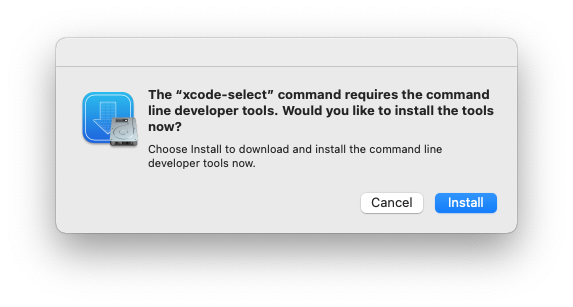
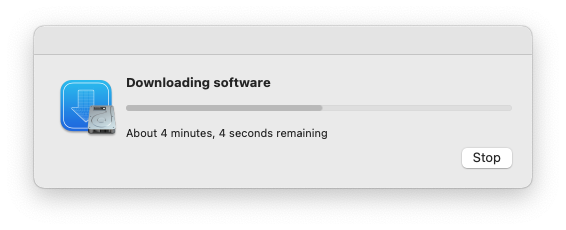
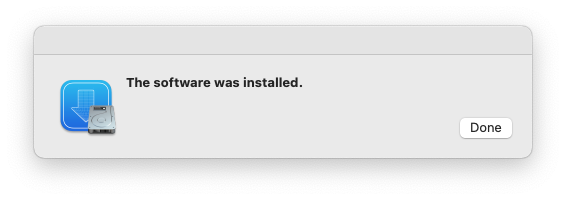
2.
or
Can download directly from apple:
https://developer.apple.com/download/more/
https://download.developer.apple.com/De ... e_15.1.dmg
(needs an account unfortunately)
3..
And probably least: Install homebrew - which also installs command line tools
Instructions here:
https://mac.install.guide/commandlinetools/3.html
Then: Verify Install
Code: Select all
$ xcode-select -p
/Library/Developer/CommandLineToolsTry checking xcode command line tools
Code: Select all
xcode-select -pCode: Select all
/Library/Developer/CommandLineToolsCode: Select all
xcode-select -vCode: Select all
xcode-select version 2395.To update, appears best option is to remove directory and then rerun install :
Code: Select all
sudo rm -rf /Library/Developer/CommandLineTools
xcode-select --installAttempt to reinstall Packages
If Packages have semi-failed to install then on reload of plugin they may not be re-installed.
The easiest option for this is to redownload the plugin and double click the plugin - reinstalling the same version.
This will reset Packages to nil and redownload them, using the install xcode tools as needed.
Alternatively can delete the plugins Packages directory and reload
To reset this delete that Packages folder in the Contents/plugin Bundle
eg. For HomeKitLink siri
Code: Select all
rm -rf /Library/Application\ Support/Perceptive\ Automation/Indigo\ 2023.2/Plugins/HomeKitLink-Siri.indigoPlugin/Contents/Packages Indigo 2023.2 now stores each plugin dependencies in /Packages inside the indigoPlugin bundle.
Hence the simple pip3 install - would no longer ideally work.
Instead a command is like this
Code: Select all
pip3 install orjson -t /Library/Application\ Support/Perceptive\ Automation/Indigo\ 2023.2/Plugins/HomeKitLink-Siri.indigoPlugin/Contents/Packages --verboseOther aspects, for future reference
No binaries available for old or newer versions and compiling needed, and dependencies not available.
Code: Select all
pip3 debug --verboseWith a pip3 install here finding a binary only (using --only-binary=:all: that is compatible with platform macosx_10_13_x86_64 (should be platform as listed above)
Code: Select all
pip3 install orjson --platform macosx_10_13_x86_64 --only-binary=:all: -t /Library/Application\ Support/Perceptive\ Automation/Indigo\ 2023.2/Plugins/HomeKitLink-Siri.indigoPlugin/Contents/Packages --verbose