
https://github.com/Ghawken/EcowittWeather
&&
Plugin Store
https://www.indigodomo.com/pluginstore/330/
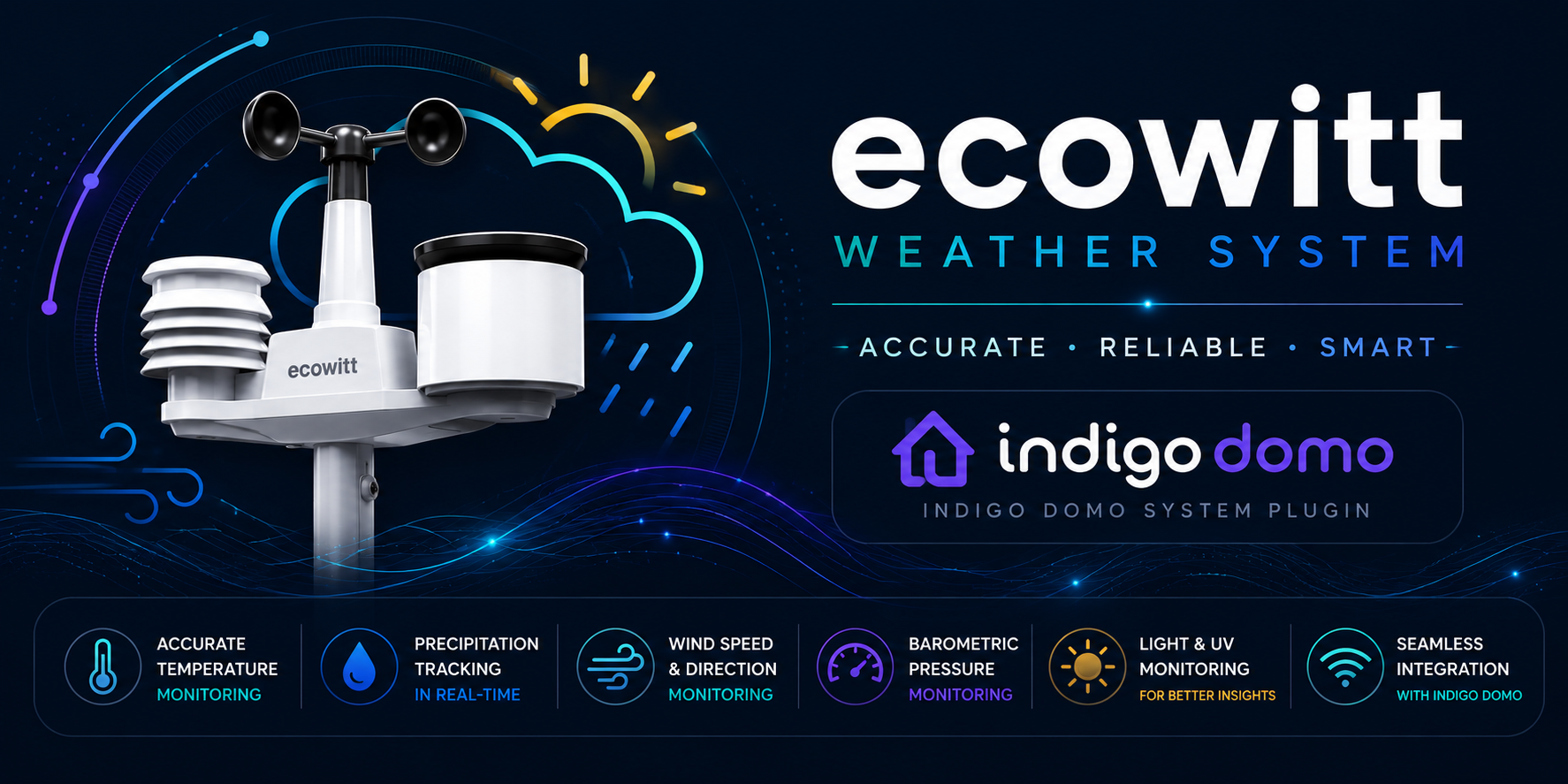

Ecowitt Weather Station is an Indigo Domotics plugin that receives live weather data directly from your Ecowitt gateway over your local network — no cloud, no third-party account required.
What it does
The plugin runs a lightweight HTTP server inside Indigo. Your Ecowitt gateway is configured to POST its sensor readings to that server every 16–60 seconds using the Ecowitt local push protocol. Every reading becomes an Indigo device state, available immediately for use in triggers, schedules, control pages, and scripts.
- No cloud dependency — data flows directly from gateway to Mac over your LAN
- All sensors in one device — a single Ecowitt Gateway Hub device holds every state from every sensor attached to that gateway
- Dynamic states — new sensors appear automatically the first time their data is received; you never need to edit XML
- Units your way — choose Imperial or Metric; the plugin picks the right value when aioecowitt provides both
- Multiple gateways — add one Hub device per gateway; each is routed by its unique PASSKEY
Supported Hardware
Gateways / Hubs
- GW1200 — Wi-Fi Gateway
- GW2000 — Ethernet and Wi-Fi Gateway
- GW3000 — Ethernet and Wi-Fi Gateway with Data Storage
- HP2560 / HP2564 — Console display hubs
Sensors (examples)
WS90 · WH65 · WH40 · WH57 · WH51 · WH31 · WH55 · WH41 · WH43 · WH45 · WH46 · WN34 · WH80 · WH68 · WH85 · WH25 · WH26
Requirements
- Indigo 2025.2 or later (API 3.4+)
- macOS with Indigo running on the same LAN as the gateway
- An Ecowitt gateway configured to push to this Mac over your local network
- aioecowitt ≥ 2025.9.2 — installed automatically by Indigo from requirements.txt
Installation
- Download the latest release .indigoPlugin file from the Releases page.
- Double-click it — Indigo will install the plugin automatically.
- Configure the plugin (see Plugin Configuration below) and create at least one Ecowitt Gateway Hub device.
Plugin Configuration
Open Plugins → Ecowitt Weather Station → Configure…
- Listen Port (default: 45000) — TCP port the plugin's HTTP server listens on. Must be reachable from the gateway.
- Listen Path (default: /data/report/) — URL path the gateway POSTs to. Must match WSView Plus settings exactly.
- Units (default: Imperial) — Preferred unit system. When aioecowitt provides both °F and °C, the preferred variant wins.
- Debug Logging (default: Off) — Logs every push and sensor update to the Indigo log.
Firewall: macOS may block incoming connections on the listen port. Allow it in System Settings → Network → Firewall or it will be prompted on first connection.
Gateway Setup
In the WSView Plus app, configure a Customised upload server. This is in the Web Tab of the Gateway settings, or via the app.
Option 1: Use the Ecowitt app (on your phone)
- In the top-left corner, select the menu icon and select Devices
- Under My Devices, select your Ecowitt station
- In the top-right corner, select the ellipsis icon
- From the list, select Others
- Select the DIY Upload Servers button, and from the Supported Servers List, select Customized
- From the Protocol Type Same As list, select Ecowitt
- Enter the Server IP / Host Name, Path, and Port
- The path has to match! Remove the first forward slash from the path, as the app will prepend one
- Save your settings
- Select Weather Services then scroll down to the Customized section
- Under Customized, select Enable and Protocol Type Same As: Ecowitt
- Enter the Server IP / Host Name, Path, and Port
- Save your settings
- Protocol: Ecowitt
- Server IP / Hostname: IP address of your Indigo Mac
- Path: /data/report (must match plugin setting)
- Port: 45000 (must match plugin setting)
- Upload Interval: 16 s – 60 s (recommended)
Device Setup
Create one Ecowitt Gateway Hub device per physical gateway:
- PASSKEY (optional): paste the PASSKEY value your gateway sends. Leave blank to accept data from any gateway — useful when you have a single gateway.
Supported Sensors
States are created only for sensors your specific gateway and attached sensors actually report. States persist across plugin restarts.
Gateway metadata
connectionStatus · lastUpdate · gatewayModel · stationType
Outdoor
outdoorTemp · outdoorHumidity · dewPoint · feelsLike · windChill
Indoor
indoorTemp · indoorHumidity · indoorDewPoint
Wind
windDirection · windDirAvg10m · windSpeed · windSpeedAvg10m · windGust · maxDailyGust
Rain (tipping-bucket gauge)
rainRate · eventRain · hourlyRain · dailyRain · weeklyRain · monthlyRain · yearlyRain
Rain (WS90 piezoelectric gauge)
rainRatePiezo · eventRainPiezo · hourlyRainPiezo · dailyRainPiezo · weeklyRainPiezo · monthlyRainPiezo · yearlyRainPiezo · last24hRainPiezo · rainStatePiezo
Pressure
pressureRelative · pressureAbsolute
Solar / UV
solarRadiation · solarRadiationLux · uvIndex
Vapour Pressure Deficit
vpd
CO₂ / Air Quality (WH45 / WH46)
co2 · co2Avg24h · co2Indoor · co2IndoorAvg24h · pm25Co2 · pm25Co2Avg24h · pm1Co2 · pm4Co2 · pm10Co2 (+ 24h averages) · humiCo2 · tempCo2
Lightning (WH57)
lightningDist · lightningCount · lightningLastTime
Leak sensors (WH55)
leak1 – leak4
PM2.5 channels (WH41 / WH43)
pm25Ch1 – pm25Ch4 (+ 24h averages)
Multi-channel temperature/humidity (WH31, WH51 etc.)
ch1Temp – ch8Temp · ch1Humidity – ch8Humidity · ch1DewPoint – ch8DewPoint · soilMoisture1 – soilMoisture8 · soilTemp1 – soilTemp8 · leafWetness1 – leafWetness8
Battery / Power
battWh65 · battWh40 · battWh80 · battWh57 · battWh68 · battWh90 · battWh25 · battWh26 · pm25Batt1–pm25Batt4 · ch1Battery–ch8Battery · soilBatt1–soilBatt8 · ws90CapVolt
Stale Detection
If no push is received for more than 5 minutes, connectionStatus is set to Stale. It returns to Connected on the next push. The check runs every 60 seconds.
Multiple Gateways
Create one Ecowitt Gateway Hub device per gateway and set the PASSKEY on each. Data from each gateway is routed to its matching device. All gateways share the same listen port and path.
Troubleshooting
No data received
- Confirm the gateway is configured for Ecowitt protocol (not Wunderground) in WSView Plus
- Check the path matches exactly — /data/report/ with trailing slash
- Run the following to confirm packets are arriving at the Mac:
Code: Select all
sudo tcpdump -ni any -A port 45000
- Enable Debug Logging in plugin preferences and reload the plugin. The log will show sensor discovery and state registration.
- Create an Ecowitt Gateway Hub device, or if one already exists, check the PASSKEY matches.
Wiki
Full documentation is available in the GitHub Wiki:
- Installation — Download, install, and first launch
- Plugin Configuration — Port, path, units, debug logging
- Ecowitt Gateway Setup — App and web UI methods, per-model and per-sensor notes
- Device Setup — Hub devices, PASSKEY routing, multiple gateways
- Sensor States Reference — Complete list of all states by sensor category
- Code Architecture — asyncio, dynamic states, unit priority system
- Troubleshooting — Common problems and diagnostic steps
Credits
- Uses aioecowitt by the Home Assistant team.
- Dynamic state pattern adapted from GhostXML by IndigoDomotics.
